How do I show Spotify lyrics on Windows?
Install and open Lyrixound, then play a song in the Spotify desktop app. Lyrixound reads the current track from Windows media controls and searches your enabled lyrics sources.
Spotify lyrics app for Windows 10 and Windows 11
Play a song in Spotify and let Lyrixound show the words beside it. The same floating overlay also follows YouTube and other Windows players or browsers that report the current track. No Spotify plugin.
Free download. Requires Windows 10 (1809+) or Windows 11.
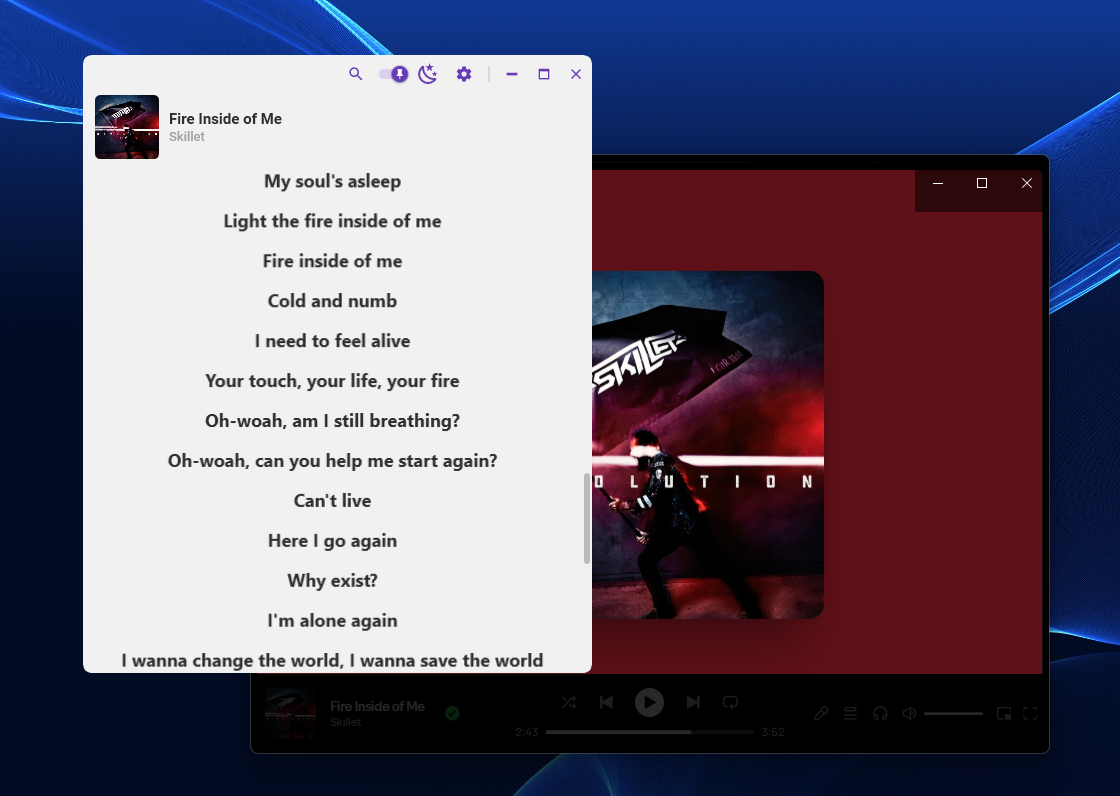
Spotify can show lyrics in its own window on Free and Premium, but those words stay inside Spotify. Lyrixound is a floating window that keeps the lyrics on screen when you minimize Spotify and keep listening.
Get the app from Microsoft Store and leave it open while you listen.
Use the Spotify desktop app while it reports the current artist and title to Windows.
Lyrixound searches enabled sources and highlights each line when synced LRC is available.
You do not install a separate lyrics tool for each player. If another app or browser exposes the current track to Windows, Lyrixound can follow that too.
Active LRC lines follow playback when synchronized text is available.
The lyrics window stays on the desktop while Spotify keeps playing in the background.
The same path works for YouTube and other apps that report media to Windows.
Adjust font, size, color, shadow, and the active-line background. Extra style presets are in Pro.
Search LrcLib, Musixmatch, Genius, lyrics.ovh, and local lyric files.
Recognize the song from system audio when the displayed track details are not enough.
Spotify’s own lyrics are not limited to Premium, and they are not available for every song. They also leave the screen when the Spotify window is minimized. Lyrixound does not modify Spotify: it reads the current media session from Windows and shows lyrics in its own window.
Detection depends on the player exposing the current track. Synced lyrics also depend on a matching synchronized version being available from an enabled source.
Install and open Lyrixound, then play a song in the Spotify desktop app. Lyrixound reads the current track from Windows media controls and searches your enabled lyrics sources.
Spotify can show lyrics inside its own window on both Free and Premium. Those lyrics are not on every song, and they disappear when you minimize Spotify. Lyrixound is a separate floating window, so the words stay on screen while Spotify keeps playing in the background.
No. It uses media information exposed by Windows. The same overlay can follow other players and browsers that report the current track.
Lyrixound prefers synced LRC lyrics when a source has them. Some songs only have unsynced lyrics or may not have a matching result.
Explore all Lyrixound features or see more screenshots.