Lyrixound for Windows 10 and Windows 11
Find lyrics for the song that is playing
Launch Lyrixound and play a song. The lyrics show up for the current track. Below is how to use the window, fix a match, line up synced lyrics, and change how they look.
Free download. Requires Windows 10 (1809+) or Windows 11.
Why I made it
I like listening to music and singing along. A lot of what I play is in English, and the lyrics are how I actually understand the song. Searching for them every time is the part I kept skipping.
On Android I tried Musixmatch, QuickLyric, and Genius. On Windows there was Musixmatch, MiniLyrics, which had stopped getting updates, and a separate plugin for each player. I even made a lyrics plugin for AIMP once.
Two things kept annoying me. Those tools only worked with a few players, and I also listen in the browser, YouTube included. And they mostly searched one database, so plenty of songs still came back empty.
I wanted one window that follows whatever Windows is playing, then checks several sources so the search happens on its own. The app's name is Lyrixound (lyrics + sound).
Main window
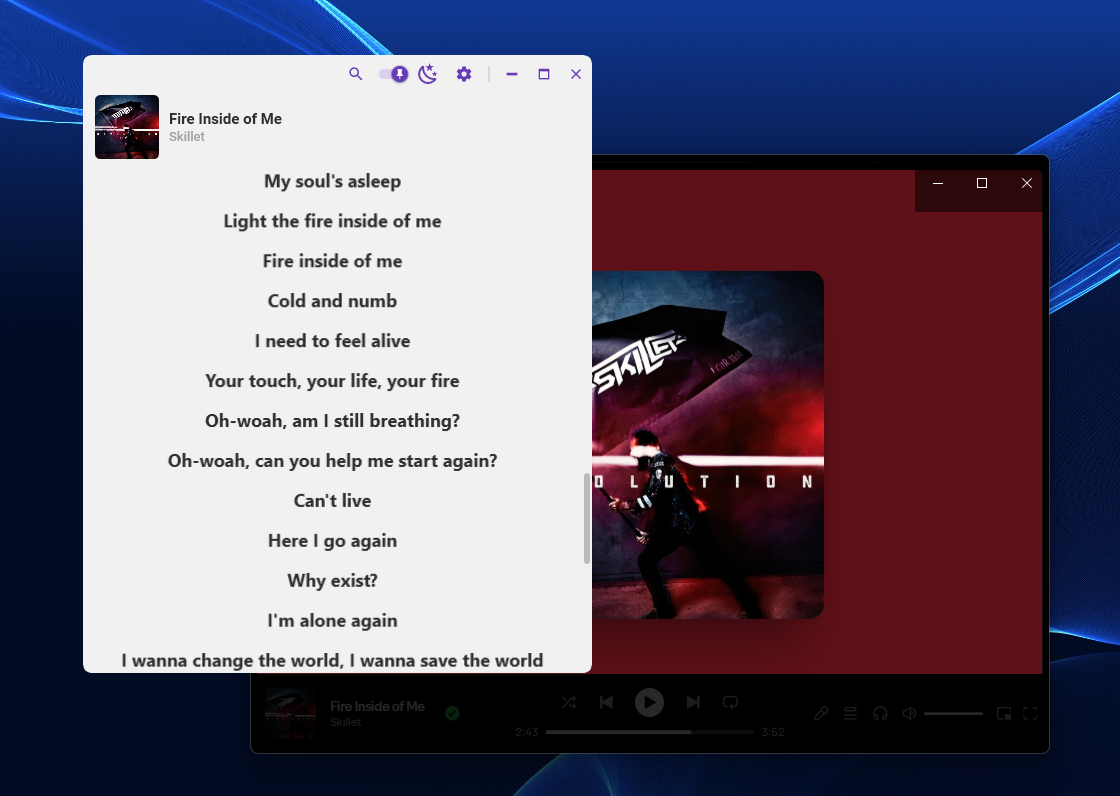
The window shows the current track, the album art, and the lyrics. Buttons stay hidden until you move the mouse over them.
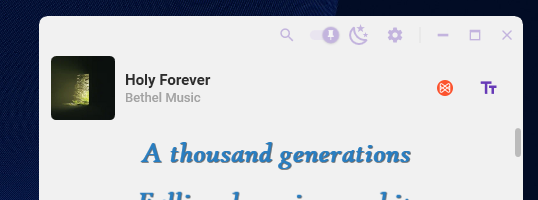
Move the mouse over the window and the icons at the top appear: search, always on top, theme, and settings. Move away and they fade out. Hover over the lyrics to show two more buttons next to the track. One opens the page or file the lyrics came from. The other opens the style settings.
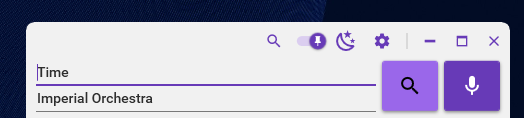
The search icon opens the artist and title fields. Change them and search again when the match is wrong. The microphone button runs audio recognition and fills in the song it hears. Settings is also in the tray menu.
Follow synced lyrics
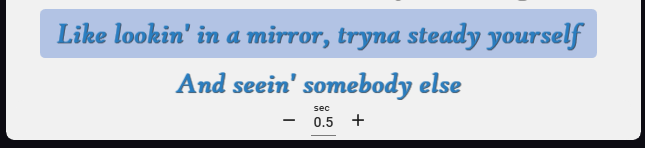
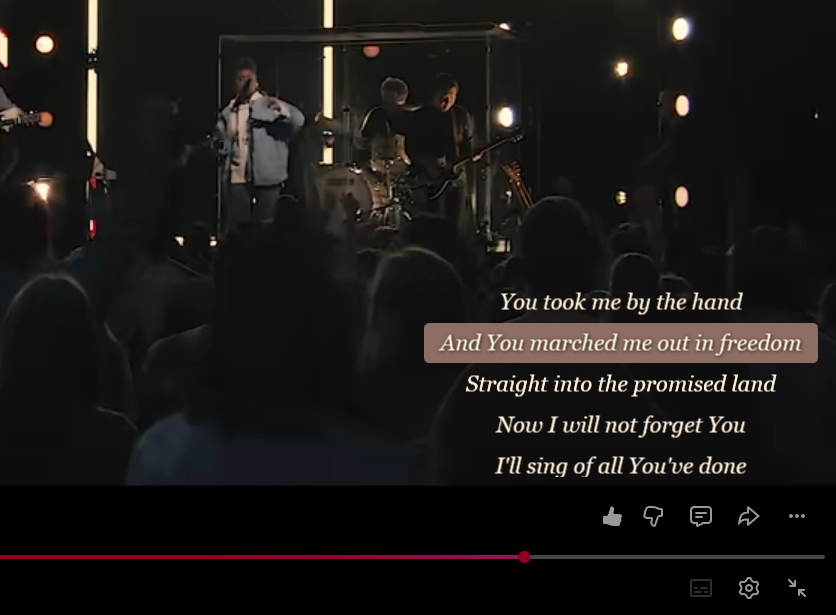
When a source has synced LRC, the current line highlights and follows the song. Sometimes the lyrics run a bit ahead or behind. Use the − and + buttons under the lyrics to shift them by seconds until the highlighted line matches what you hear.
Click another window and Lyrixound switches to overlay mode. The top bar folds away and only the lyrics stay on screen. Click the window again to get the controls back. In Pro, Click through lets clicks pass through the overlay to the app underneath.
Change how the lyrics look
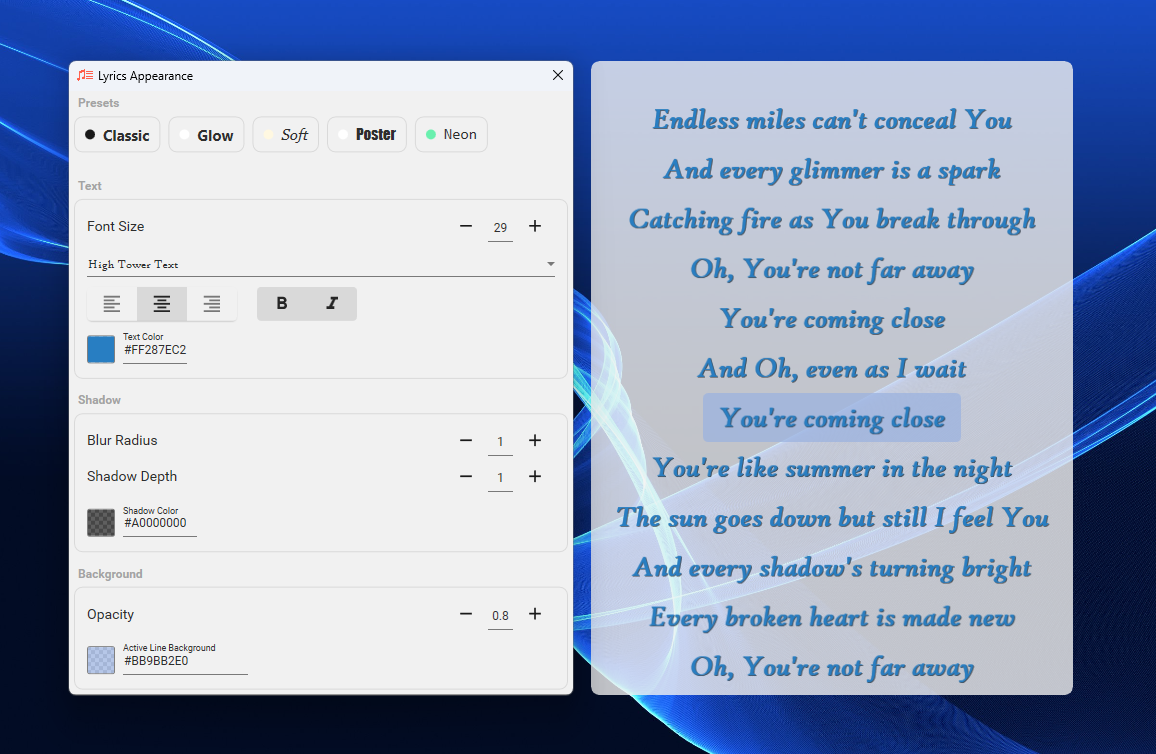
Hover over the lyrics and click the customize button. From there, change the font, size, style, and alignment, plus the text color, shadow, active-line background, and how see-through the window is. Some presets are only in Pro.
Choose sources and save lyrics
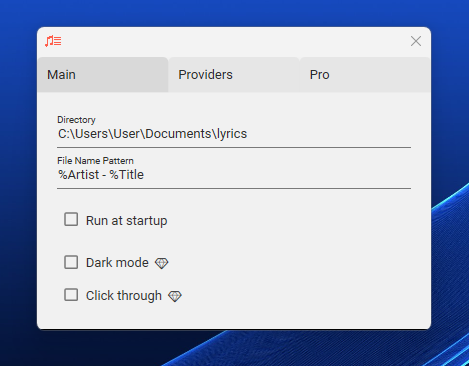
Open Settings from the top icon or the tray menu. On the Main tab, set the folder where
lyrics are saved and the file name pattern, such as %Artist - %Title.
Check Run at startup to launch Lyrixound with Windows. Dark mode and
Click through on this tab are Pro.
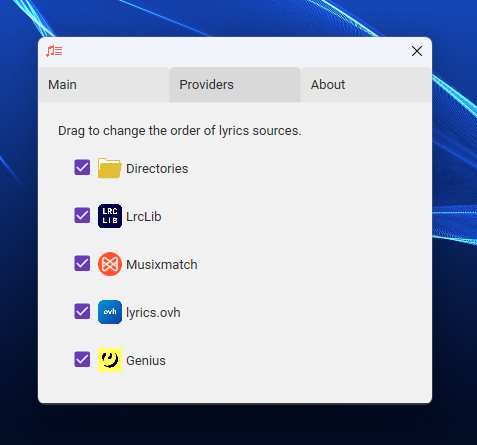
On the Providers tab, drag items to set the search order. Lyrixound tries each enabled source until one has the song, and keeps a later result when it is synced. The sources are local folders, LrcLib, Musixmatch, Genius, and lyrics.ovh. Musixmatch and LrcLib can return synced LRC, not only plain text.
Tray icon
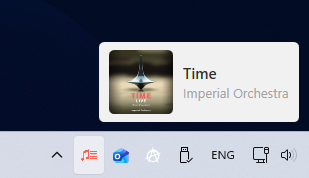
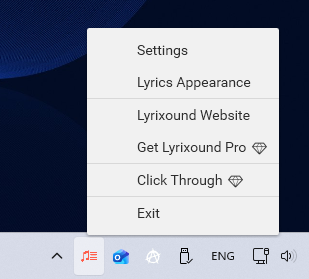
Lyrixound stays in the notification area while a song plays. Hover the icon to see the current track: album art, title, and artist. Right-click it to open app menu.
Play a song
Open Lyrixound, then play a track in an app that reports it to Windows. That includes Spotify, YouTube in a supported browser, and other players. Some older players need a plugin first. See the list.
You need Windows 10 (1809+) or Windows 11. A title on screen can still miss a lyrics match. If Windows never receives a title, audio recognition works for any app. In the worst case, type the artist and title yourself.
Lyrixound Pro
Finding and showing lyrics stays free. Pro is a one-time purchase from the Microsoft Store. It adds Light and Dark theme, click-through, the extra lyrics styles, and priority email support. There is no subscription.